← Back to the guide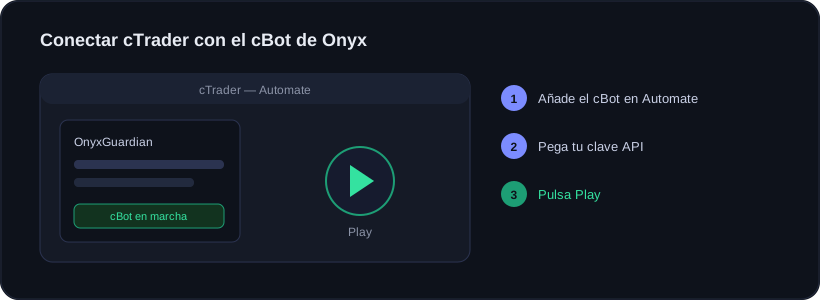
Guide · Getting started
Connecting your cTrader account
🕒 1 min read
Onyx works the same on cTrader as on MetaTrader: it reads your trades read-only, never trades or touches your money. The difference is that in cTrader the connector is a cBot (in MetaTrader it's an EA), but it does the same thing.
Steps
1
Pick the cTrader platform
In Onyx, on Connect account, select cTrader. You will see the button to download the connector and where to create your API key.
2
Download the Onyx cBot
Grab the connector: the .algo file (ready to use) or the .cs source if you prefer compiling it yourself. Keep it handy.
3
Add it in Automate
Open cTrader Desktop and go to the Automate tab. Import or paste the Onyx cBot, compile it and drag it onto any chart.
4
Paste your key and hit Play
In the cBot parameters paste your Onyx API key. Make sure cTrader’s global automation button is on, and hit Play.
If Play is greyed out, first turn on the global automation switch at the top right of cTrader.
Confirmation
When the cBot reports, your account shows as connected and your stats appear in seconds.
Onyx Guardian and copy trading also exist for cTrader, as separate cBots, with the same settings as on MetaTrader.
Ready to trade with data, not gut feeling?
Onyx analyzes every trade, protects your risk with Guardian and shows your real numbers. Start free and upgrade whenever you want.
Was this useful?
📱 Carry Onyx on your phone — Android & iPhone